
Everyone can use Git - my simple day-to-day workflow (CLI only)
There's a noticeable shift happening right now: more and more people are building things. Not only software engineers, but also people who use AI to create scripts, websites, small helper tools, or text-based content. You prompt something. You get the code or text. You test it, tweak it, and continue.
This change is visible in numbers. GitHub’s Octoverse 2025 report shows that, in the last year, GitHub saw its biggest absolute growth ever. On average, one new developer joined GitHub every second (!), and the trend is continuing.
What's clear for software engineers isn't yet clear for everyone. Once you start iterating with AI-generated code or content, you can progress fast. It can also get messy fast without proper version control. Git becomes relevant for a lot more people.
Git and why I prefer the command line interface (CLI)
In simple terms, Git is a way to save project states, compare them, and go back if something breaks. Not file by file. Not like "track changes" in Word, but snapshots of your project over time. It's lightweight and simple to use, even without knowing all the internal details about objects, trees, blobs, etc. You can go far without those details.
Although it's simple, I've seen people mess up branches with accidental rebases, unexpected merge commits, and weird cherry-picks. These mistakes often happen when people click around in a GUI like SmartGit without fully seeing what the tool is doing. With the CLI, the workflow is usually more explicit and easier to reproduce.
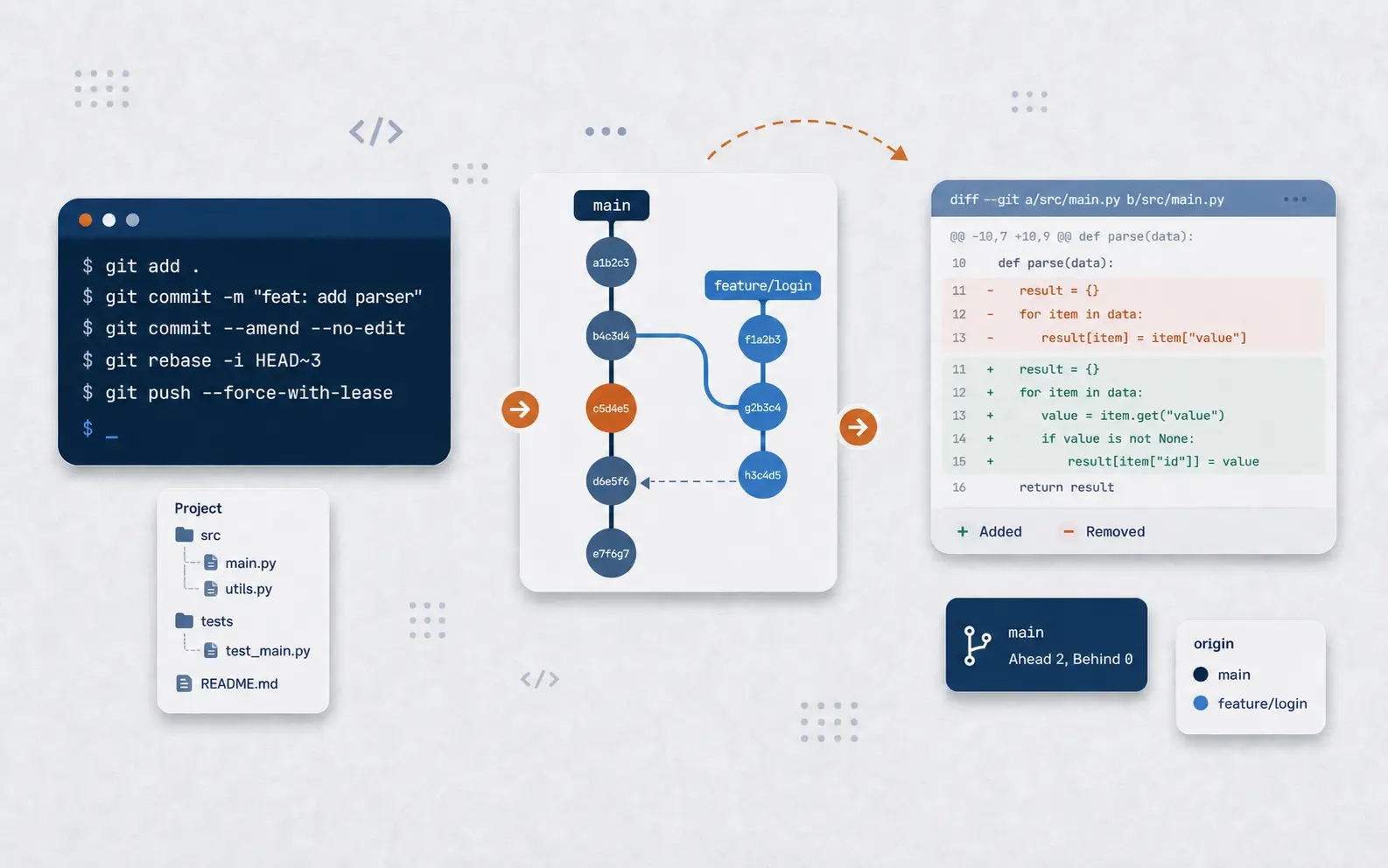
I use Git from the command line and strongly recommend that every beginner start with the CLI. Below is my favorite workflow and a set of copy-paste commands that solve more than 95% of my daily use cases.
My day-to-day Git workflow
It works whether you write everything yourself or start from AI-generated code/content. I personally use git commit --amend a lot on my local repository.
- Prompt / make a change
- Review the change
- Commit
- Test and fix
- Amend the last commit or create a new one
- Repeat
- If appropriate, clean up and squash multiple commits into a single one
- Push to the remote repository if available
1. Initialize a repository
If I already created a remote repository (recommended for most cases, e.g., on GitHub), I just clone it. If I start locally without a remote:
git init2. Stage changes
I normally use VS Code to stage specific files, but that’s just convenience. If you want to add all files to the staging area, that’s usually enough.
git add .3. Commit
This creates a new commit: a named snapshot of your current project state. Keep messages short but meaningful, and think in functional units, not file changes. Here is a good reference for proper commit messages.
git commit -m "your message"4. Amend the last commit
If you forgot something or want to amend the last commit, use this. The commit message stays the same. Very useful when small fixes happen constantly. Be careful using this on commits already pushed to the remote when working on shared branches. But for local commits, I love it.
git commit --amend --no-edit5. Squash commits
Sometimes it makes sense to clean up the Git history and combine multiple commits into a single one, e.g., when you have multiple “fix ...” commits, or tiny iterations that all belong to one functional change. I prefer doing this via interactive rebase. It lets you combine multiple (n) commits into one:
git rebase -i HEAD~n6. Push
If you're working with a remote repository, you can push your changes like this:
git push
Only if you rebased / rewrote history after pushing (e.g., squashed after push):
git push --force-with-lease7. Update your branch
Here you could start a big discussion about when to rebase and when to merge. I don't want to go too deep here, since it also depends on your hooks and merge-back strategy. If I just want to update my branch with changes that happened on main in the meantime, git merge is the command I can always apply easily (after git fetch):
git merge origin/mainFinal thoughts
I've spent enough time with Git to know there's a lot of depth under the hood. Sometimes it's worth understanding, especially when something gets messed up. In day-to-day work, I mostly stick to the simple loop and the handful of commands above. Most of the time, that's all you need for powerful version control.